

Connection form via a wireless LAN
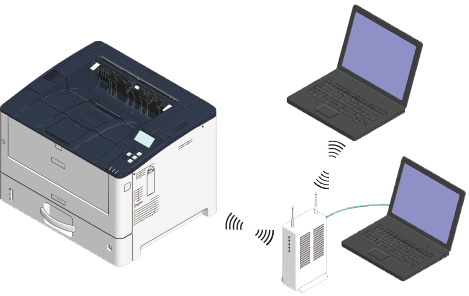
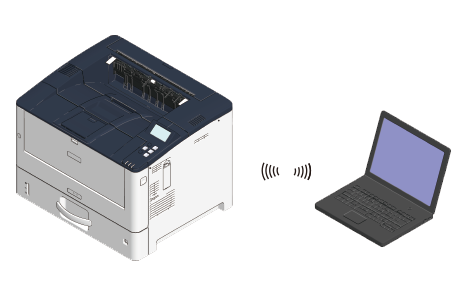
There are two types of connection forms between this machine and the PC via a wireless LAN. Select the connection form according to your environment, and prepare what is necessary as per the following table for the connection.

- Wireless LAN (Infrastructure) and wireless LAN (AP mode) cannot be used at the same time.
- Wired LAN1 and wireless LAN can be used at the same time. Please connect wired LAN1 and wireless LAN to different subnets since the communication may be unstable if they are connected to the same subnet.
- Wireless LAN and wired LAN2 (optional) cannot be used at the same time.
- Do not place an electric appliance (especially microwave oven or digital cordless telephone) that emits weak electronic waves near this machine.
- Wireless LAN connection may be inferior in communication speed compared to wired LAN connection or USB connection depending on the environment. When printing large data such as photos, we recommend you to print via a wired LAN or USB connection.
Set the detailed settings such as security and server from the web page of this machine if required.

Form | Infrastructure | AP mode |
|---|---|---|
| Connection image | ||
| Description | Connect this machine and the wireless terminal (PC, tablet, smartphone, etc.) via an access point. | Set this machine as a wireless access point, and connect it directly with the wireless terminal (PC, tablet, smartphone, etc.). |
| Required preparations |
|
|
| Connection method | Connecting via an access point (Infrastructure) | Connecting directly with this machine (AP mode) |

- SSID is also called the network name, ESSID or ESS-ID.
- Encryption key is also called the network key, security key, password, or pre-shared key (PSK).