

1. Registering a role
Register a role to assign to the user. For example, create an organizational unit name or job title role, and set and register the allowed operations (like printing) for each role.
A maximum of 100 roles can be registered. You can also assign multiple roles to a single user.
You can set to permit/prohibit the following operations for a role.
- Printing from a PC
By default, two types of roles are registered.
- .AdminRole:
The role of the device administrator. It can be assigned to general users. A user with [.AdminRole] assigned can act as a device administrator and perform [Administrator Login] on the web page. (However, the condition is that access control is enabled and it is a local user.)
[.AdminRole] cannot be deleted or edited. - .DefaultRole:
This is the role to be assigned if no role is specified when a user is registered.
[.DefaultRole] cannot be deleted, but the access rights can be edited.
Open the web page of this machine.
Log in as an administrator.
Click [Printer Settings].
Click the Menu button on the upper right corner, and then select [User Management] - [User Management].
Click [Role].
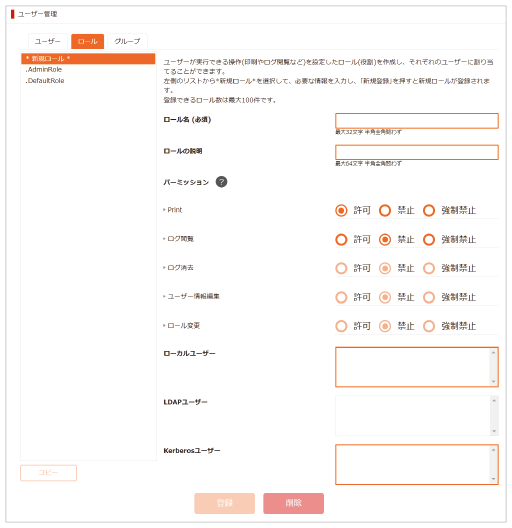
When the Role Information screen is displayed, input the required information.
Role Name: Input any role name. The same [Role Name] cannot be registered. Also, [Role Name] cannot be omitted.
Role Description: Input a description for the role.
Permission: Set permission/prohibition/forced prohibition of each operation in this role. Setting forced prohibition will prohibit operations permitted by other roles.
Local User List: Add or delete a local user to which this role is assigned.
Kerberos User List: Add a Kerberos user to whom this role applies.
Click [Submit].
You can copy registered roles and add new roles based on the copied configuration.
When you click [Copy] below the role name, the role information screen will be displayed, so change and register the required items.
