
3. Setting the IP address
If you want to set the machine's IP address to a fixed value, follow the procedure below.

- For [Auto], the machine's IP address may change dynamically.

- For [IPv4 Address], set a value which is not overlapped to any other networked machines.
- If you do not use the IPv6 address, set [DHCPv6] to [Disable].
(Example)
- IP address of this machine: 192.168.101.2
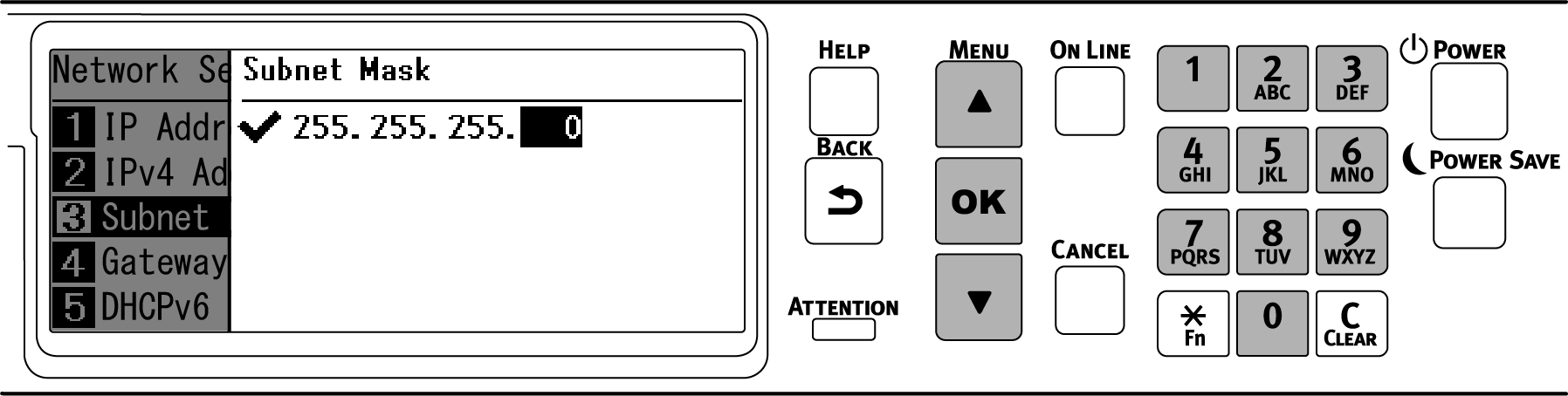
- Subnet mask: 255.255.255.0
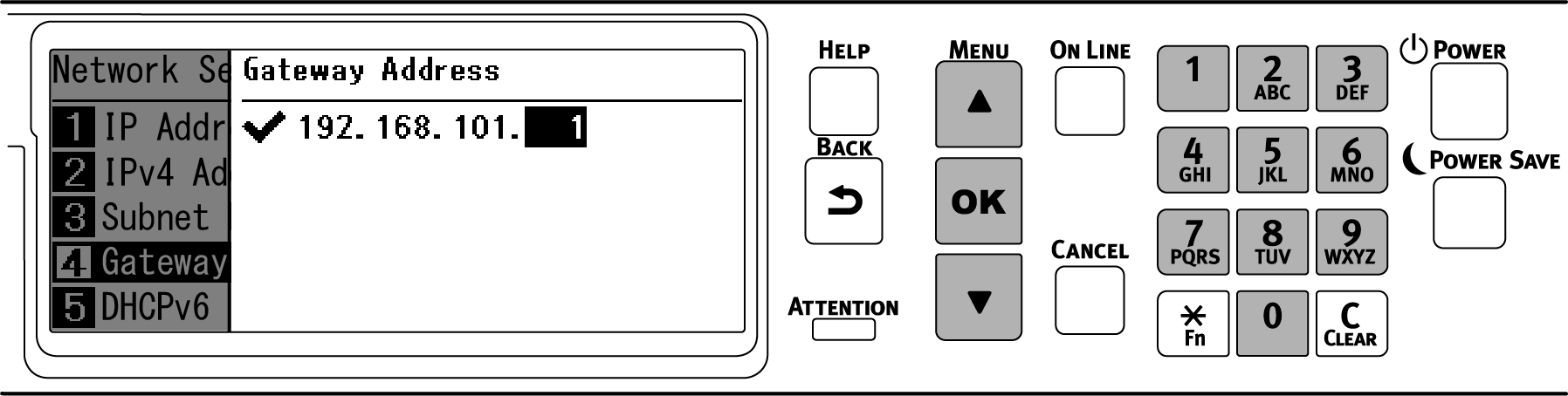
- Gateway address: 192.168.101.1
When using a wired LAN, please refer to "2. Setting the IP address, etc.".
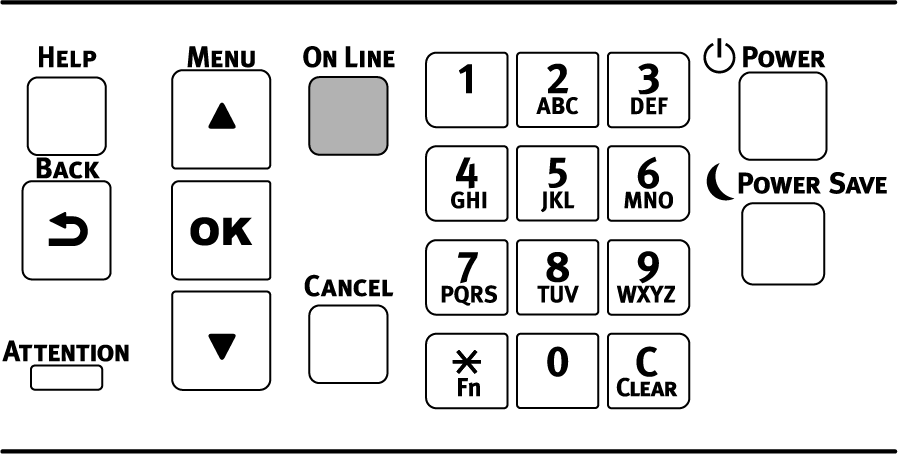
- Press the scroll button ▼ on the operator panel several times to select [Wireless(Infrastructure) Setting], and press «OK».
Input the admin password using the numeric keypad, and press «OK».
- "Cannot be used simultaneously with Wireless(Wi-Fi Direct)." will be displayed for about 5 seconds.
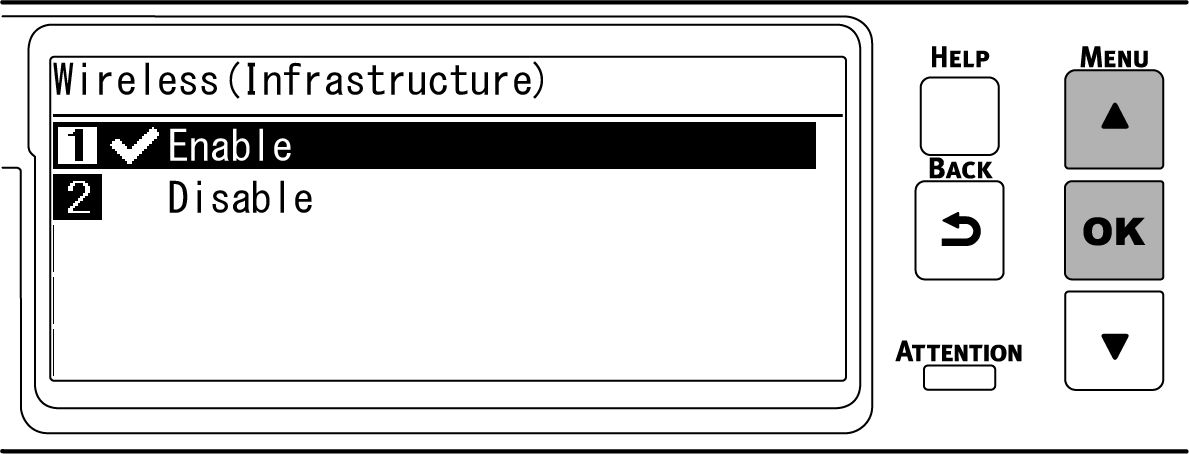
Press ▲ to select [Enable], and press «OK».
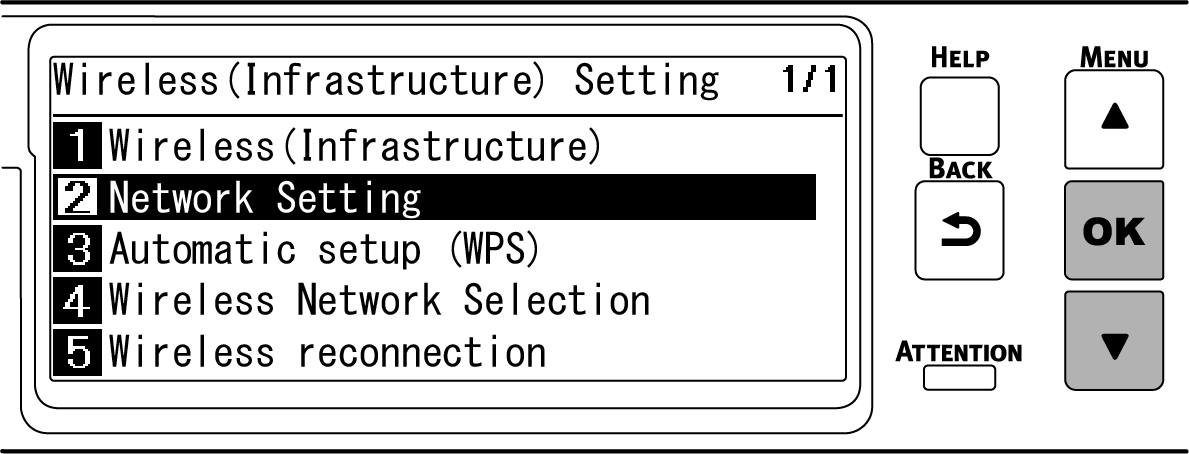
Press ▼ to select [Network Setting], and press «OK».
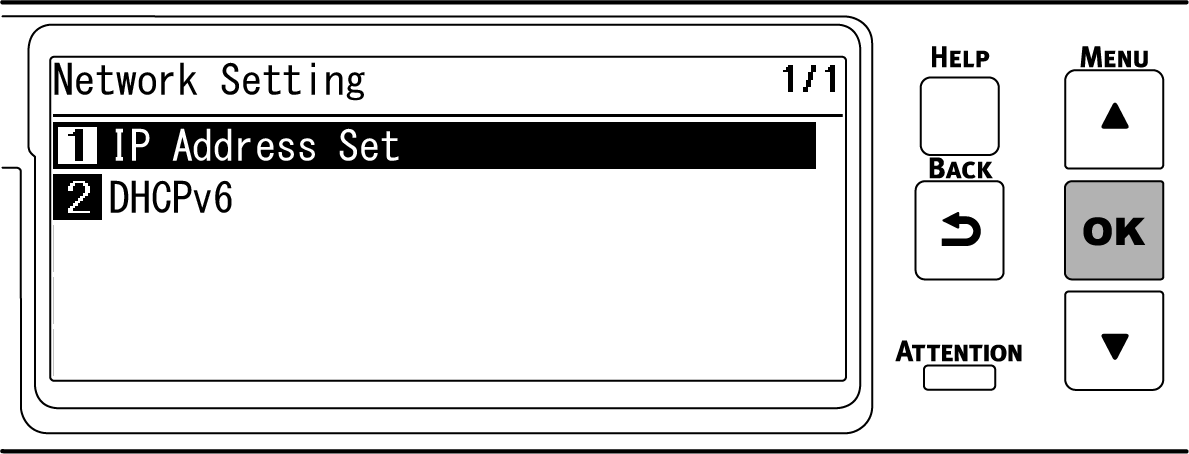
Check that [IP Address Set] is selected, and press «OK».
Press ▼ to select [Manual], and press «OK».
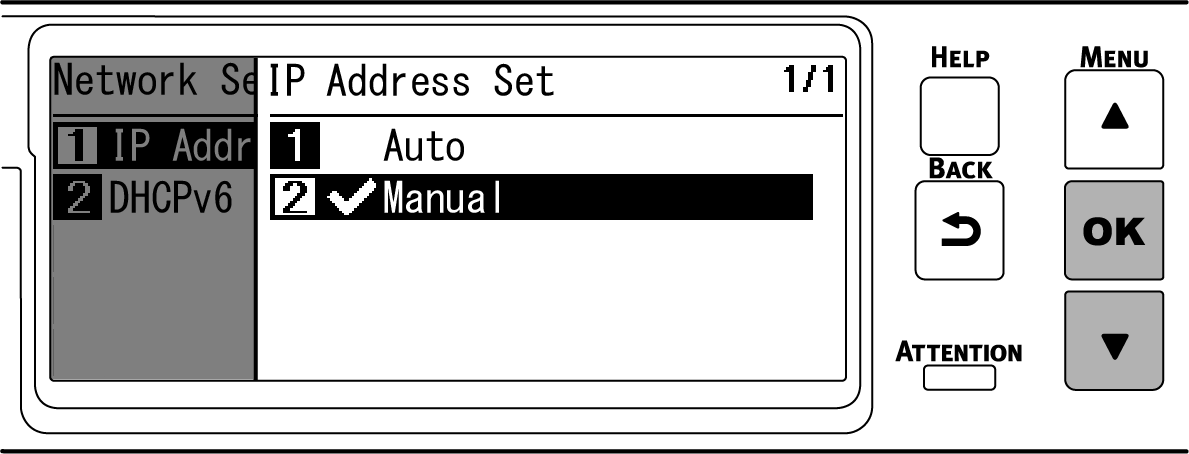
Press «BACK», then press ▼ to select [IPv4 Address] on the [Network Setting] screen, and finally press «OK».
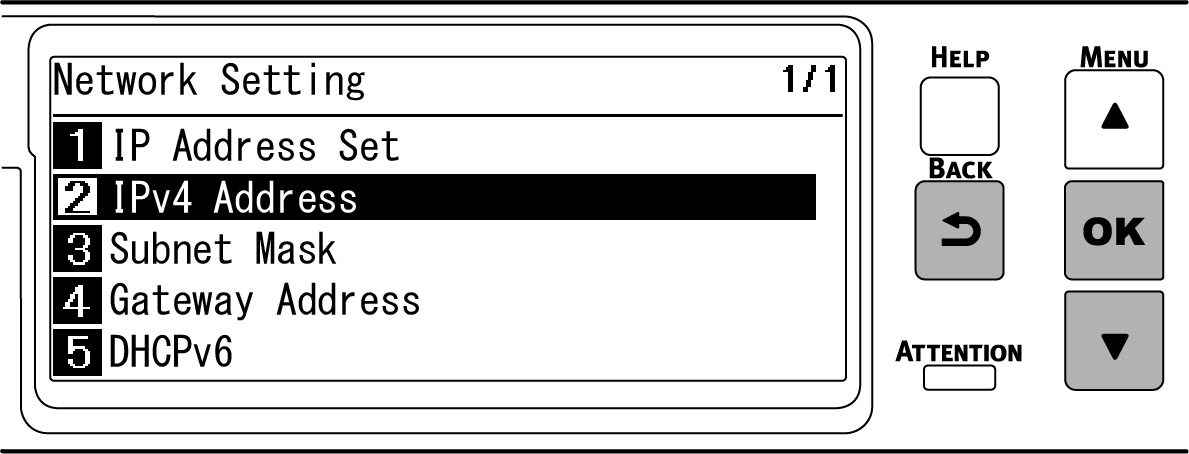
Use either the scroll buttons or the numeric keypad to input the first 3 digits of the IP address, and press «OK».
Likewise, input the next 3 digits, and press «OK». Press «OK» after inputting all the digits.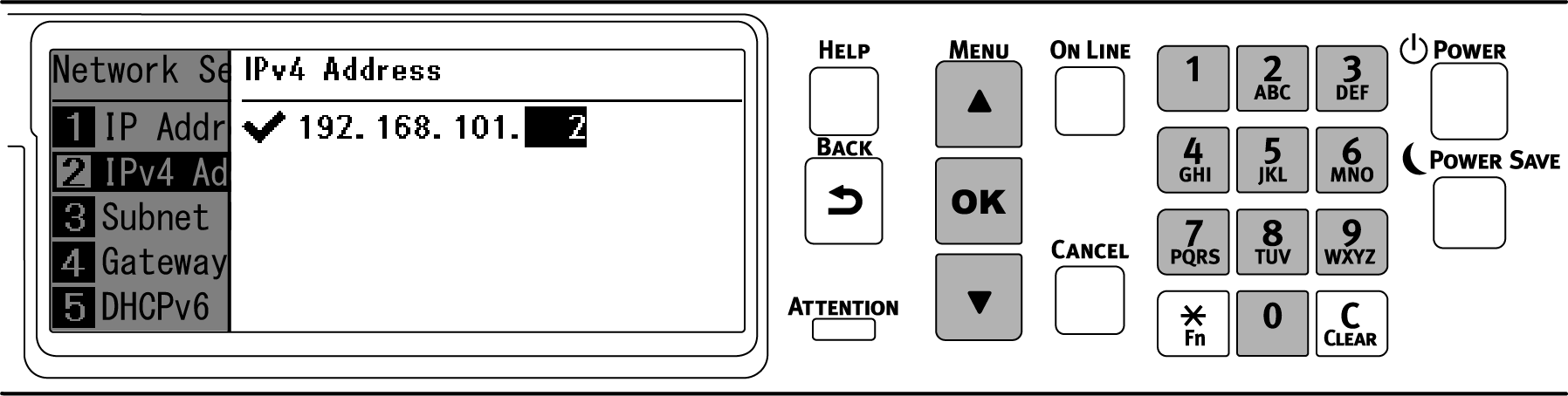
Press ▼ to select [Subnet Mask], and press «OK».
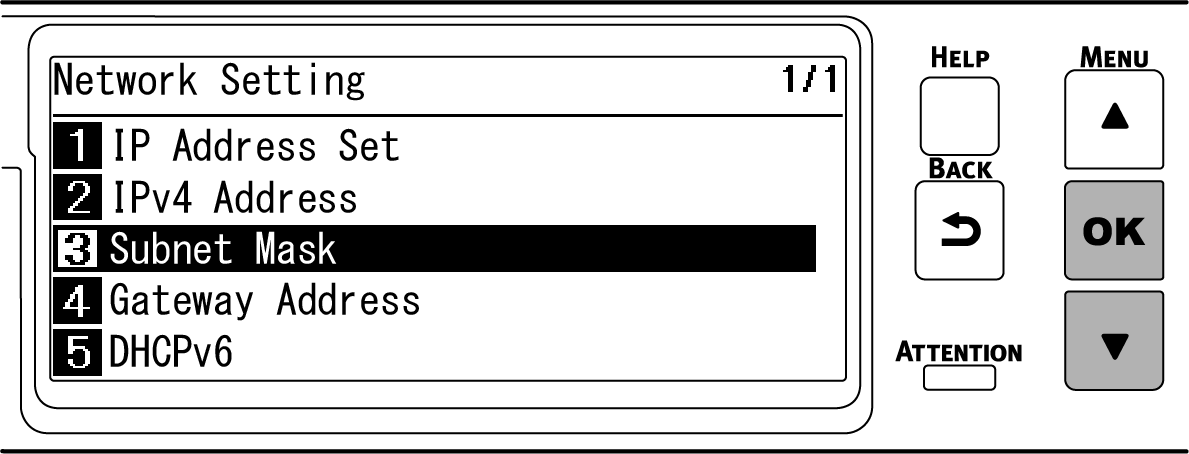
Input the subnet mask in the same way as the IP address. Press «OK» after inputting all the digits.
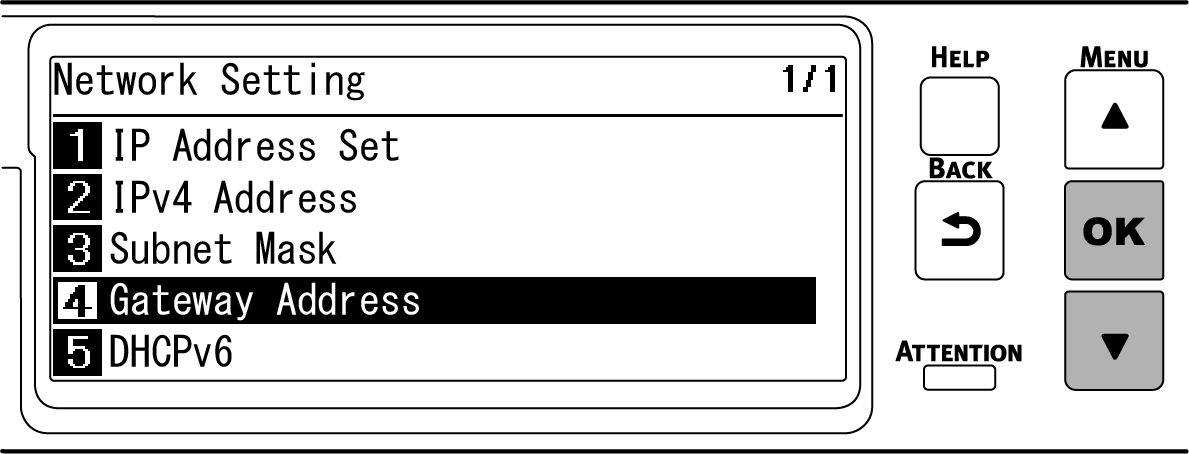
Press ▼ to select [Gateway Address], and press «OK».
Input the gateway address in the same way as the IP address. Press «OK» after inputting all the digits.
Press «ONLINE» to return to the standby screen.