

Canceling the printing
To cancel the data being printed or ready to print, press «CANCEL» on the operator panel for a short time (2 seconds or less).

- You can change how long the button is pressed from [Cancel Button Behavior] of the menu items.
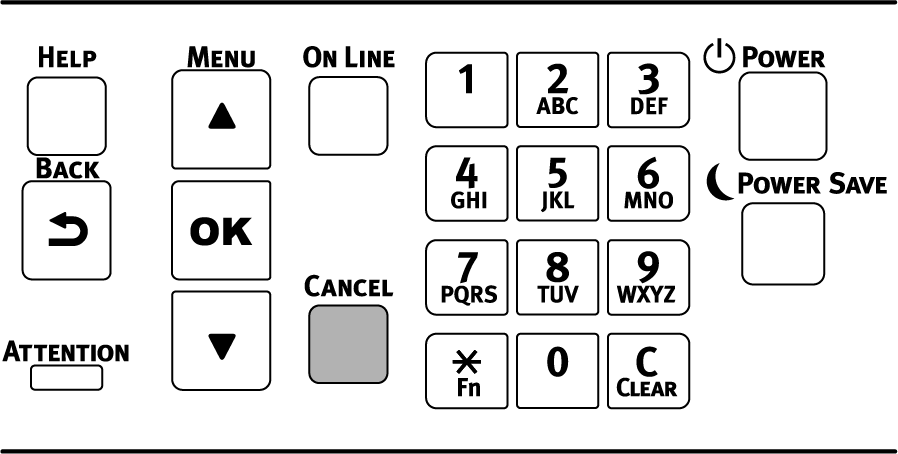
If you press «CANCEL», the following screen will be displayed.
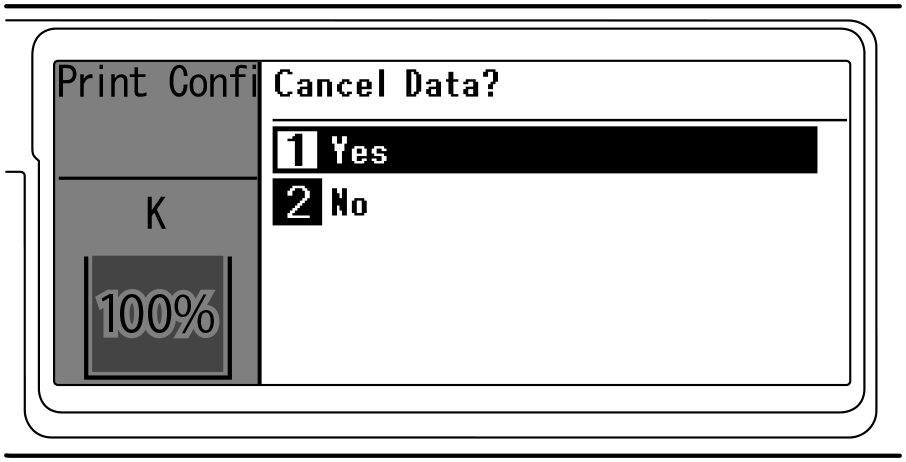
To cancel the printing, select [Yes] and press «OK».
To continue the printing, select [No] and press «OK».
If no operation is done within 3 minutes while this screen is displayed, the screen display will disappear and printing will continue.
Canceling the printing from the PC
Cancel the printing from your PC if you accidentally send a large amount of data from your PC to the printer.
For Windows
Open [Devices and Printers].
- Right-click on the printer’s icon, and select [See what's printing].
- Select the name of the file under printing that you want to cancel.
- Press the «Delete» key on the keyboard.
- Check the operator panel of this machine.
If "Processing" or "Data Present" is displayed, cancel the printing from this machine’s operator panel.

For macOS
- Select [System Settings] from the Apple menu.
- Click [Printers & Scanners].
- Click the icon of the printer.
- Click [Print Queue].
- Select the name of the file under printing that you want to cancel.
- Click [x].
- Check the operator panel of this machine.
If "Processing" or "Data Present" is displayed, cancel the printing from this machine’s operator panel.