

4-1. Connecting with WPS
If the wireless LAN access point supports WPS, you can easily connect to the wireless LAN using the push button for easy setup (WPS button).
- Check the position of push button for easy setup (WPS button) and the time for which the button is pressed in the User's Manual enclosed with the wireless LAN access point.
Check that the wireless LAN access point is activated and operating properly.
Press the scroll button ▲ on the operator panel several times to select [Wireless(Infrastructure) Setting], and press «OK».
Input the admin password using the numeric keypad, and press «OK».

- "Cannot be used simultaneously with Wireless(Wi-Fi Direct)." will be displayed for about 5 seconds.
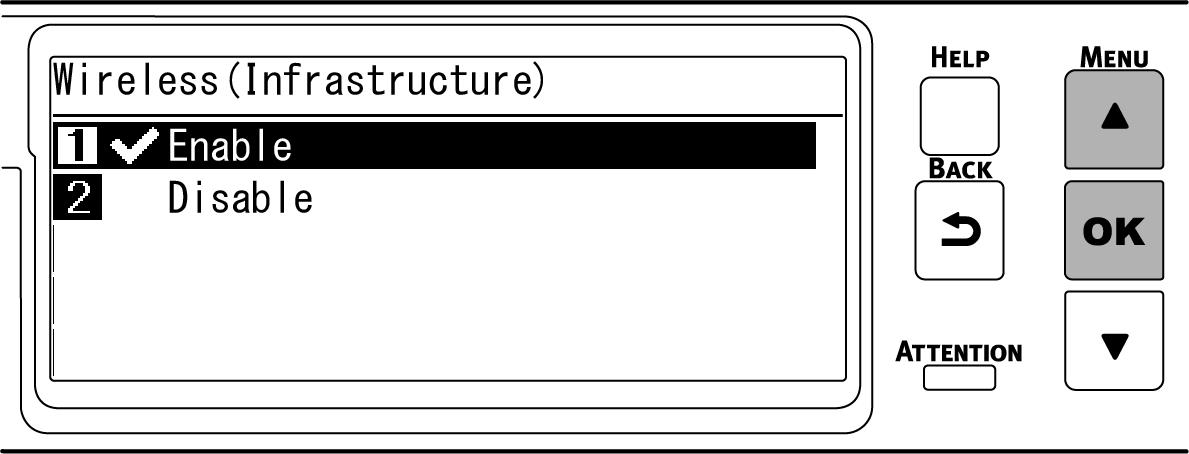
Press ▲ to select [Enable], and press «OK».
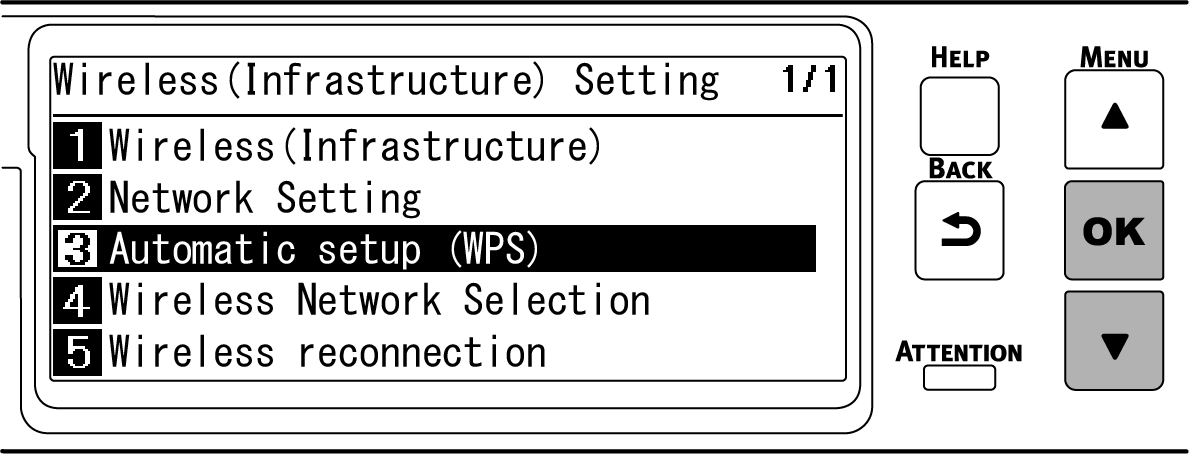
Press ▼ several times to select [Automatic setup (WPS)], and press «OK».
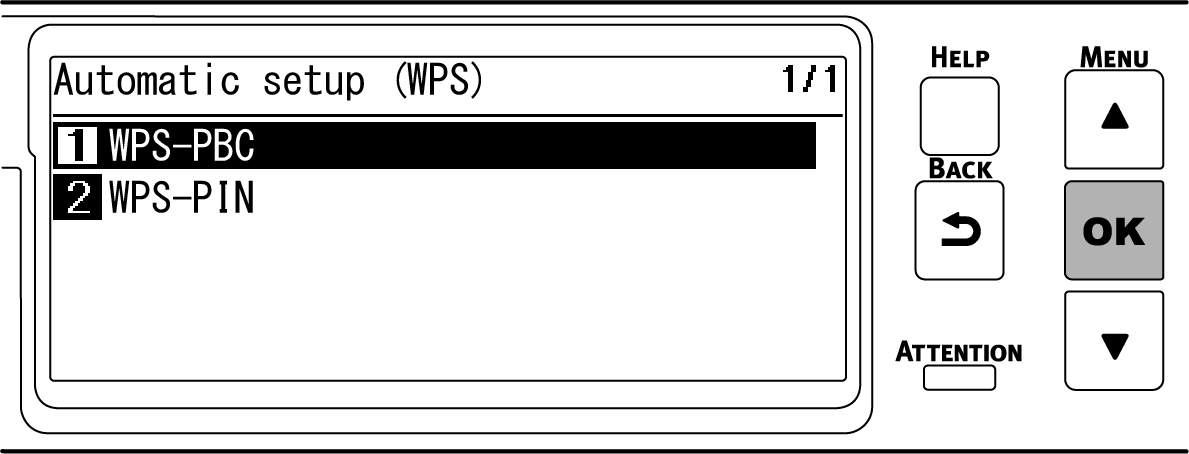
Check that [WPS-PBC] is selected, and press «OK».
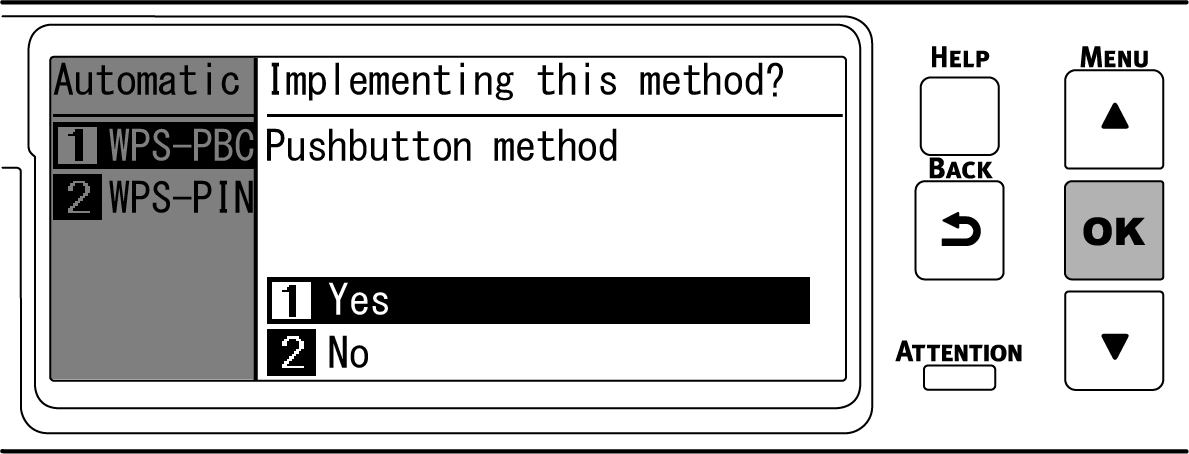
When "Implementing this method? Pushbutton method" is displayed, check that [Yes] is selected, and press «OK».
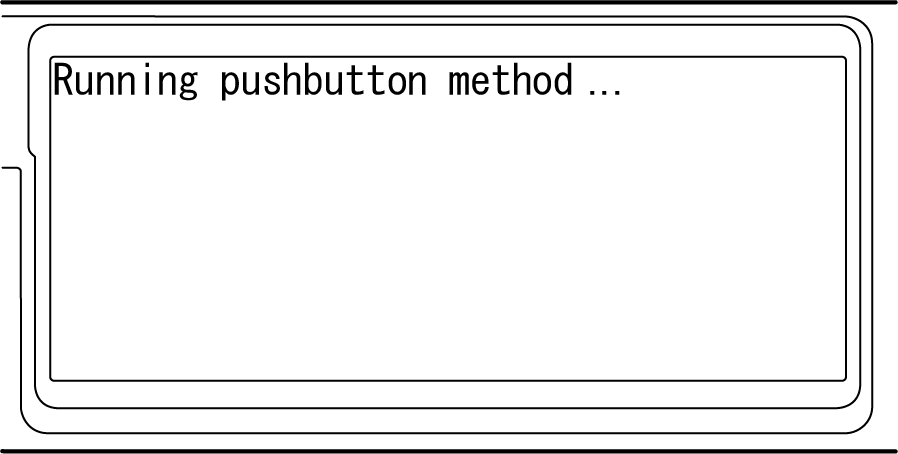
"Running pushbutton method" is displayed, and this machine will start to search for a wireless LAN access point.
Press and hold the push button of wireless LAN access point for the period of time confirmed in Step 1 or for a few seconds.

- "Running pushbutton method" is displayed for about 2 minutes. Press the push button of wireless LAN access point while it is displayed.
- While "Running pushbutton method" is displayed, the operator panel of this machine is disabled.
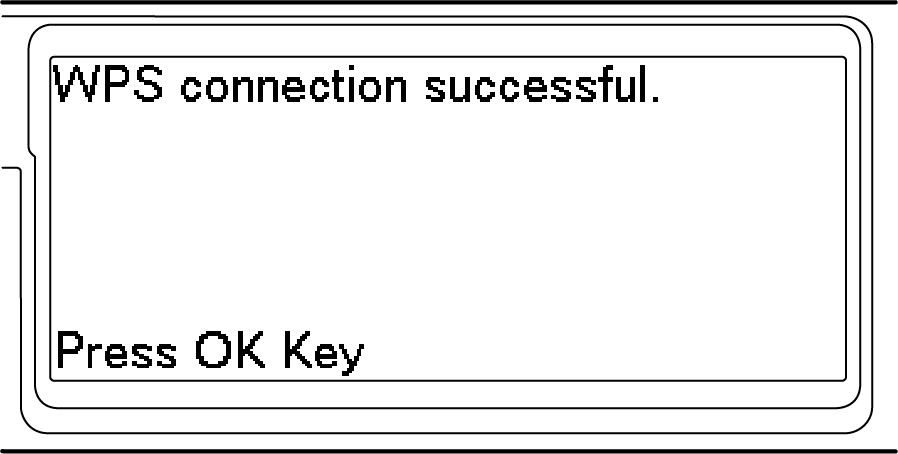
When "WPS connection successful" is displayed, the connection to the wireless LAN access point is completed.
Proceed to "6. Checking the connection from a PC".
- When "Not connected to wireless access point" or "Connection failed" is displayed, repeat the procedure from Step 1, or try "4-2. Connecting by selecting a wireless LAN access point".
