

6. Checking the connection from a PC
Check the IP address of the device, and access it from a PC by using the web browser.
Press the scroll button ▼ on the operator panel to select [Menus], and then press «OK».
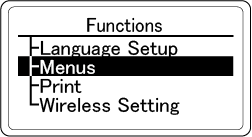
- Check that [Information] is selected, and press «OK».
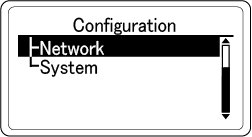
Press ▼ several times to select [Network], and then press «OK».
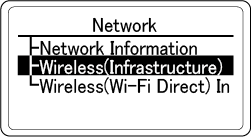
Press ▼ to select [Wireless(Infrastructure) Information], and then press «OK».
Press ▼ several times to select [IPv4 Address] and then press «OK».
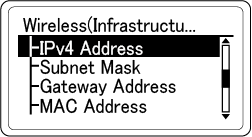
- Take a note of the displayed IP address.
- Start the web browser in your PC.
Input "https://(the IP address recorded in Step 6)", and press the «Enter» key.
Connection is successful when the web page of this machine is displayed.
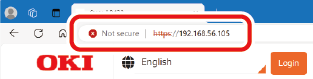

- By default, when you are opening the machine's web page, use HTTPS instead of HTTP.
By default, when you are opening the machine's web page, a warning that it may not be a legitimate server will be displayed in your web browser. Set up the certificate appropriately, or temporarily ignore the warning.
If you cannot access the machine via HTTPS due to an expired certificate or a corrupted certificate, set [HTTPS Redirection (Web)] to [Disable] from the operator panel, access the web page via HTTP, and reset the HTTPS settings.
This machine does not support TLS 1.1 or lower. If the web browser you are using only supports TLS 1.1 or lower, use a web browser that supports TLS 1.2 or higher, or after understanding the security risks, set [HTTPS Redirection (Web)] to [Disable] from the operator panel and access the web page via HTTP.
Then, go to "Installing software on your PC".
When using a mobile device, go to "Printing from a mobile device".