

3. Connecting with a device
Input the SSID and password of this machine in the wireless terminal to connect.
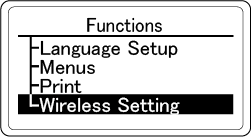
Press the scroll button ▼ on the operator panel several times to select [Wireless Setting], and press «OK».
Press ▲ or ▼ to input the admin password, and press «OK».
Check that [Wireless(Wi-Fi Direct) Setting] is selected, and press «OK».

- "Cannot be used simultaneously with wireless(infrastructure)." will be displayed for about 5 seconds.
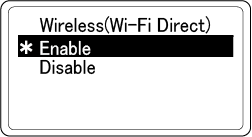
Press ▲ to select [Enable], and press «OK».
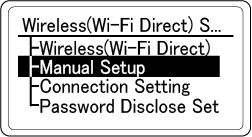
Press ▼ several times to select [Manual Setup], and then press «OK».
Check that [SSID], [Security] and [Password] of this machine are displayed.
- The screens shown here are examples, and they may differ from the actual display.

Input [SSID] and [Password] of this machine confirmed in Step 6 in the wireless terminal to connect.
- If the wireless terminal is set to obtain the IP address automatically, you can communicate by connecting to this machine via Wi-Fi Direct and allocating the IPv4 address automatically to the wireless terminal.
- The factory default IP address is [192.168.110.100].
- If you cannot connect, see "Troubleshooting for wireless LAN connection".

Then, go to "Installing software on your PC".
When using a mobile device, go to "Printing from a mobile device".