

For the Windows PS printer driver
[Layout] tab
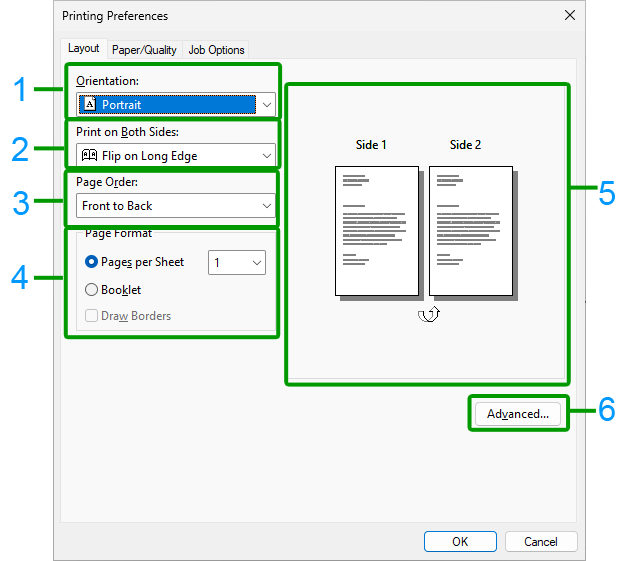
No. | Item | Description |
|---|---|---|
1 | Orientation | Set the printing orientation. |
2 | Print on Both Sides | Set it for duplex printing. |
3 | Page Order | Set the order of pages to be printed. |
4 | Page format | Specify the number of pages to be printed on one sheet of paper and booklet printing. |
5 | Layout image | Display a sample image of the print layout. |
6 | Advanced | You can make detail settings such as the print quality and paper size. |
[Paper/Quality] tab
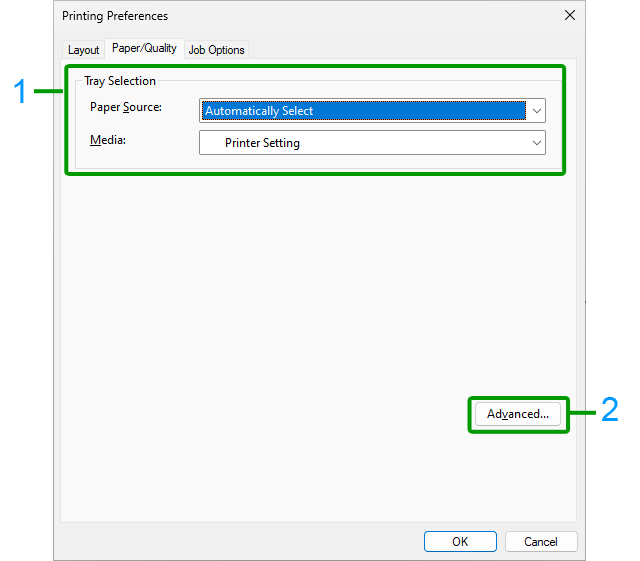
No. | Item | Description |
|---|---|---|
1 | Tray selection | Change the paper tray. |
2 | Advanced | You can make detail settings such as the print quality and paper size. |
[Job Options] tab
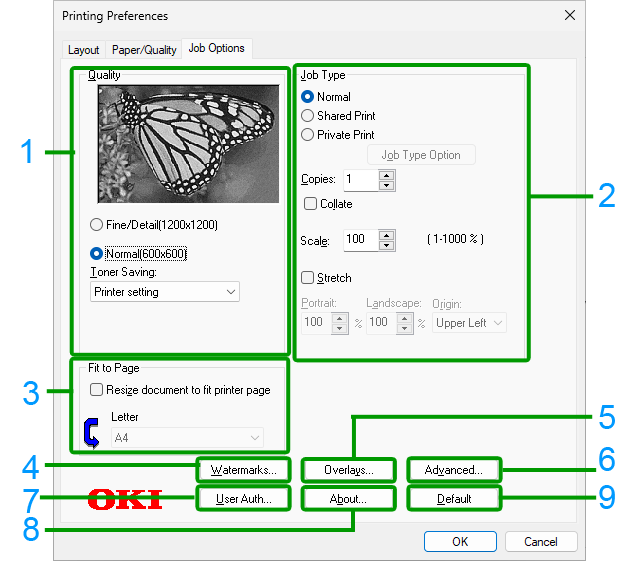
No. | Item | Description |
|---|---|---|
1 | Quality | Specify the print resolution, etc. |
2 | Job Type | Set the type of print data, the number of copies, etc. When [Shared Print] or [Private Print] is set, [Job Type Option] is available. If [Collate] is checked, multiple documents will be printed as a batch. |
3 | Fit to page | Check [Resize document to fit printer page] to print on a different size of paper. |
4 | Watermarks | Set it for printing with a text or stamp watermark. |
5 | Overlays | Set it for printing with an overlapping format registered in the printer beforehand. |
6 | Advanced | Other settings can be made. |
7 | User Authentication | Set the user authentication. |
8 | About | Display the version of the printer driver. |
9 | Default | Restore the settings of each item in the tab to the initial values. |