
設定印表機驅動程式
如果已安裝擴充進紙匣,在安裝印表機驅動程式後,請依照下列程序變更印表機驅動程式的設定。


- 若要執行此程序,您必須以具有管理員權限的使用者身份登入電腦。
Windows PCL 印表機驅動程式
開啟「Devices and Printers (裝置和印表機)」。
- 在 [OKI C651 PCL6 (OKI C651 PCL6)] 上按一下右鍵,然後選擇 [Printer Properties (印表機內容)]。
- 選擇 [Device Options (裝置選項)] 頁籤。
按一下 [Get Printer Settings (取得印表機設定)]。
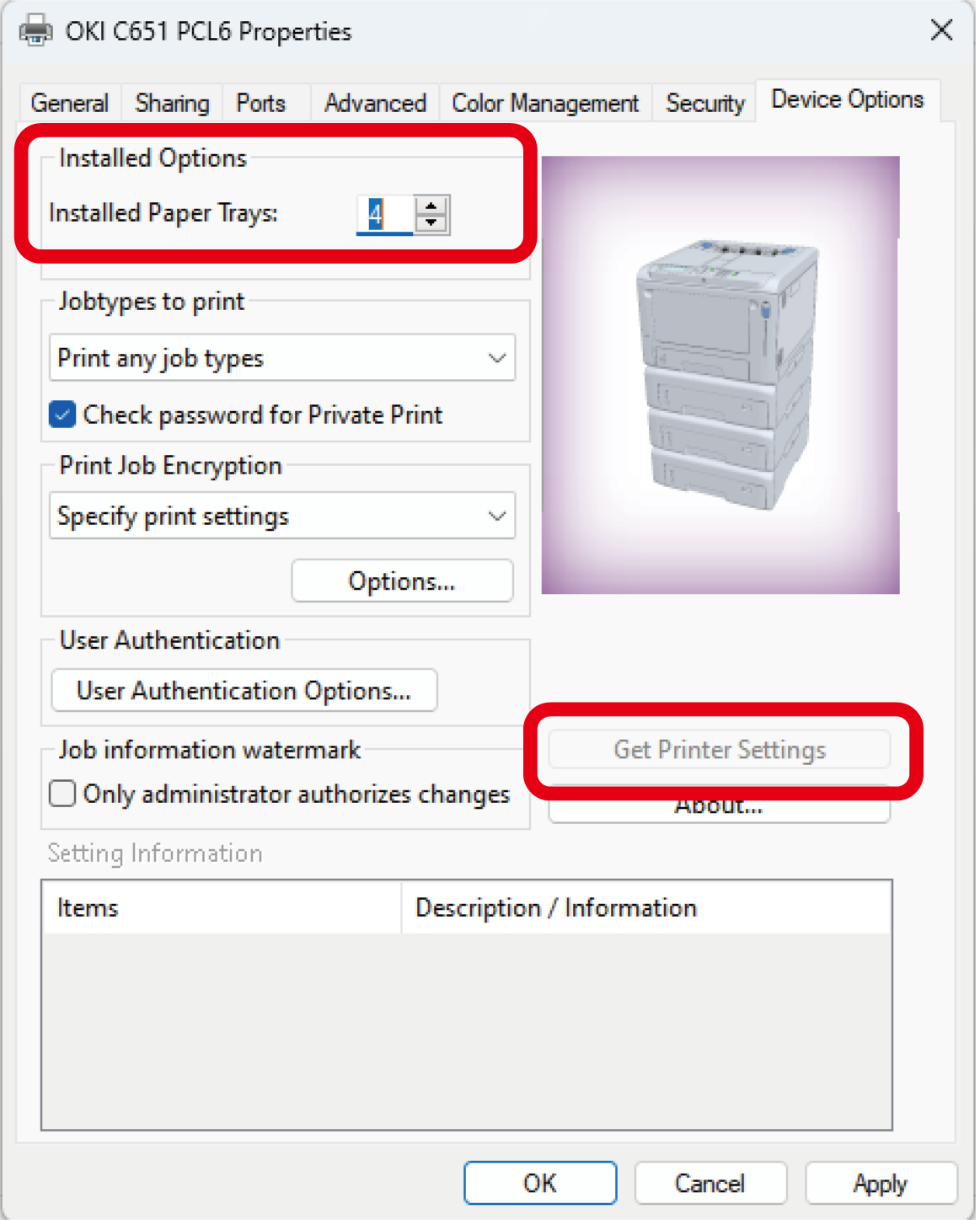
- 按一下 [OK (確定)]。
Windows PS 印表機驅動程式
開啟「Devices and Printers (裝置和印表機)」。
- 在 [OKI C651 PS (OKI C651 PS)] 上按一下右鍵,然後選擇 [Printer Properties (印表機內容)]。
- 選擇 [Device Settings (裝置設定)] 頁籤。
選擇 [Installable Options (可安裝的選項)] 中的 [Get installed options automatically (自動獲取可安裝選項)],再按一下 [Setup (設定)]。
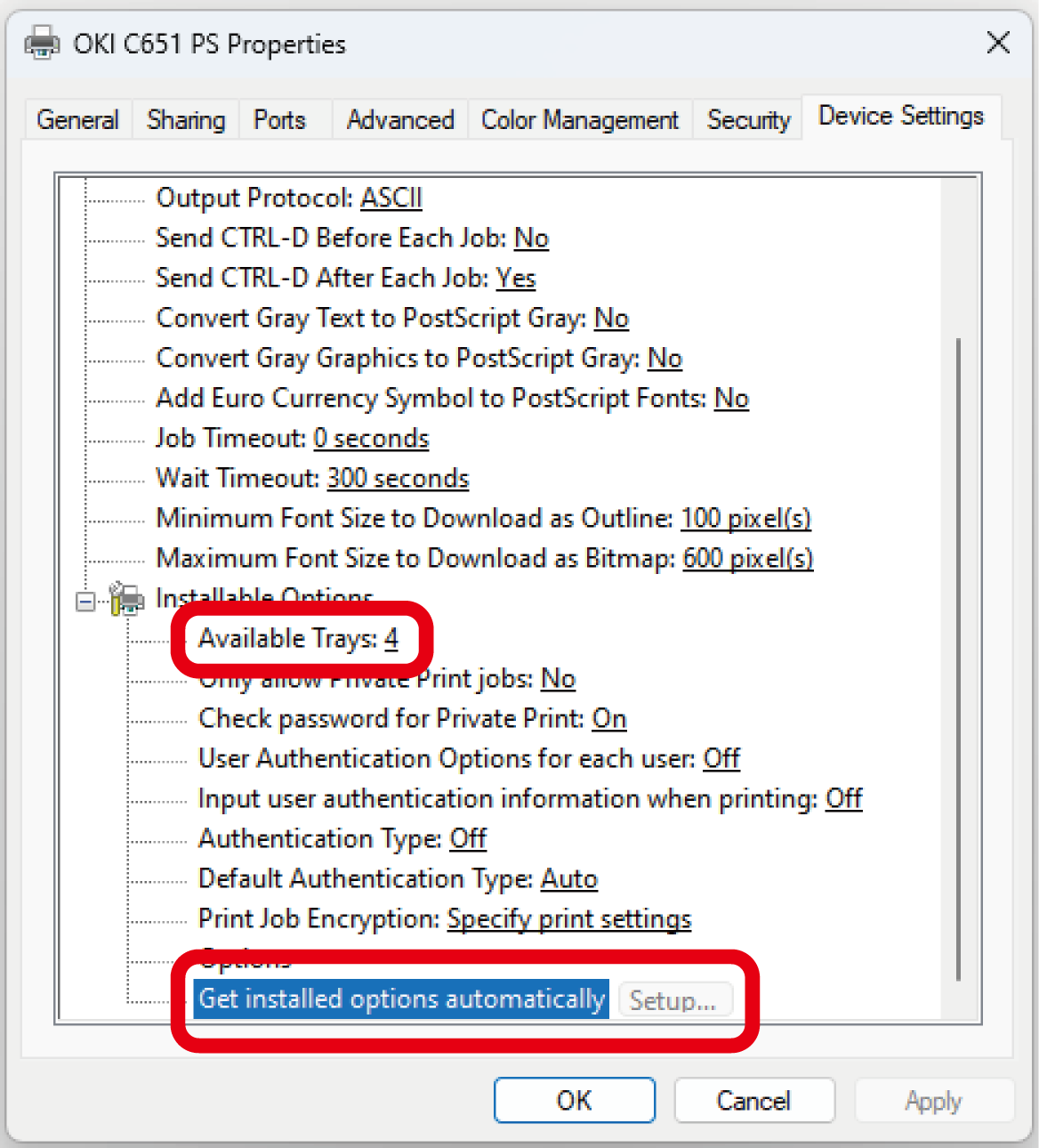
- 按一下 [OK (確定)]。
macOS 適用

- 根據新增印表機的時間,擴充進紙匣的資訊可能已設定。
- 從 Apple 選單選擇 [System Settings (系統設定)]。
- 按一下 [Printers & Scanners (印表機與掃描器)]。
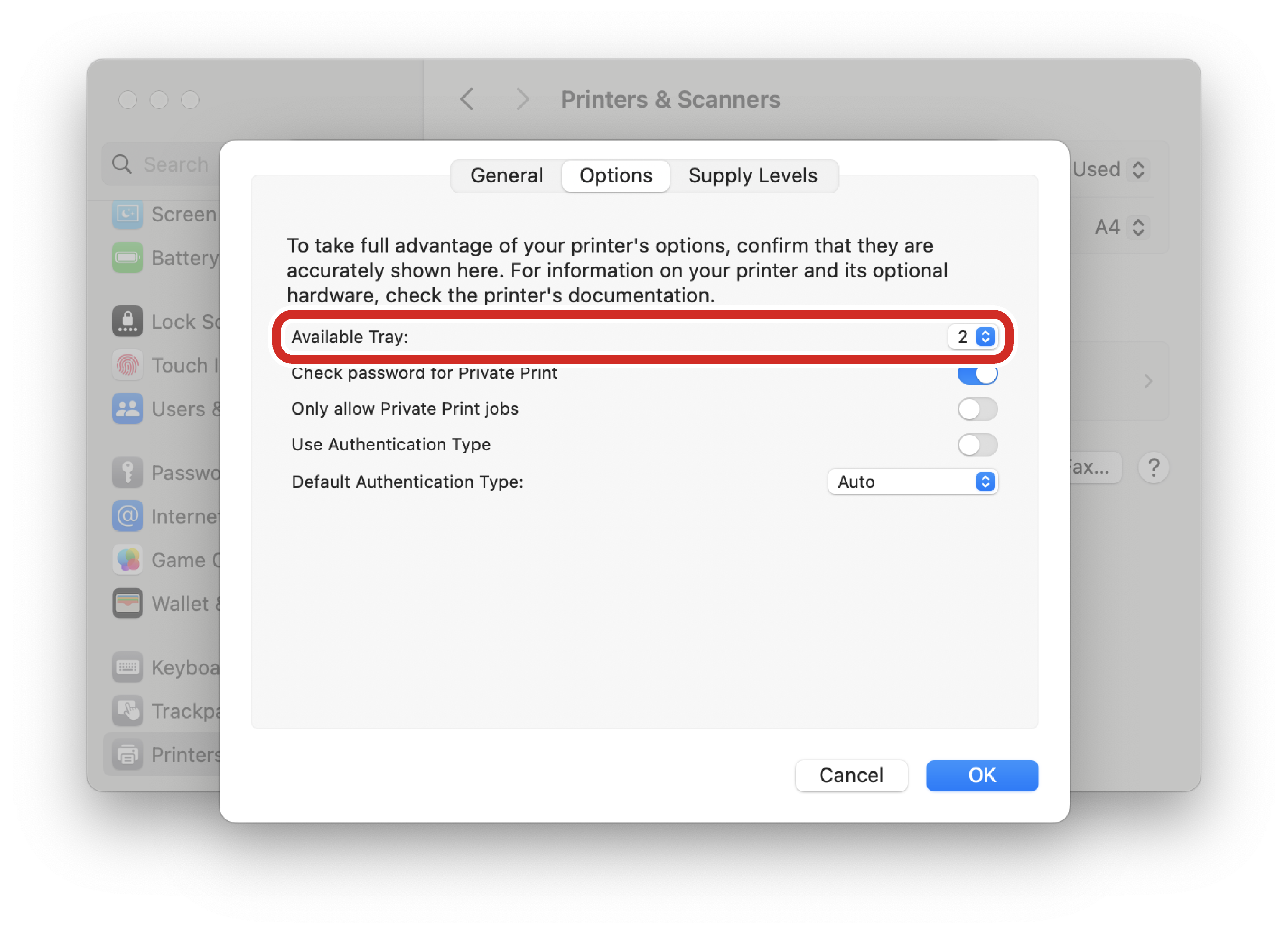
- 選擇本機器,然後按一下 [Options & Supplies (選購配件與耗材)]。
- 選擇 [Options (選項)] 頁籤。
在 [Available Tray (可用進紙匣)] 中選擇進紙匣總數,然後按一下 [OK (確定)]。