

When a printer or a multi-function peripheral machine supports NFC, you can hold the mobile terminal over it to register.
For Android terminal users
-
Make sure that the printer or multi-function peripheral you want to register can communicate directly with the mobile terminal wirelessly.
Memo
For details, refer to the user's manual of the device to be registered.
-
Tap the Mobile Print icon on your mobile terminal.
-
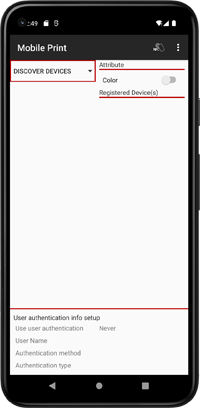
On the displayed screen or on the screen displayed by tapping [Please select a device by tapping here.], hold the mobile terminal over the NFC mark of the device.
-
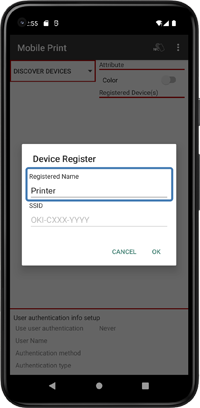
On the [Device Register] screen, enter any registered name in [Registered Name] and tap [OK].
Note
Can not change the SSID.
-
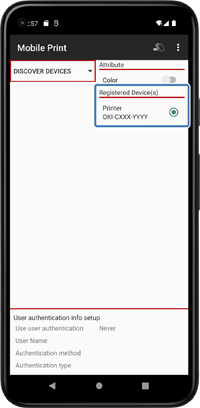
Check that it is registered in [Registered Device(s)] and selected.
For iOS terminal users
-
Enable the NFC function and Wi-Fi on your mobile terminal.
-
Tap the Mobile Print icon on your mobile terminal.
-
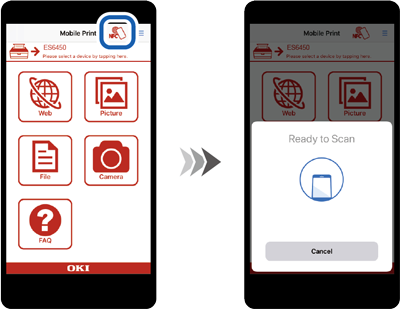
Tap [NFC] on the displayed screen to display [Ready to Scan], and then hold the mobile terminal over the NFC mark of the device.
-
Place the NFC antenna of the mobile terminal near the NFC mark on the control panel of the device.
-
The device is registered as an application in the mobile terminal.