

You can enlarge or reduce to print while confirming the data.
-
Start up Mobile Print and select pictures or Web pages you want to print.
-
Press and hold or touch the preview area with two fingers.
-
The preview screen will change from [View Mode] to [Edit Mode].
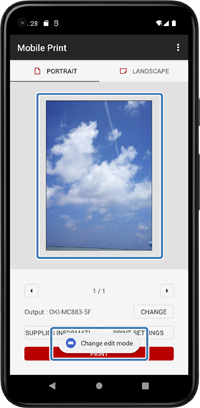
-
-
Pinch out or pinch in the preview area with two fingers to change the size of the print data.
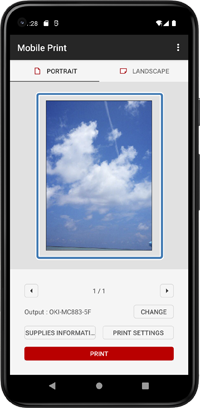
-
Double tap the preview area to return to [View Mode].
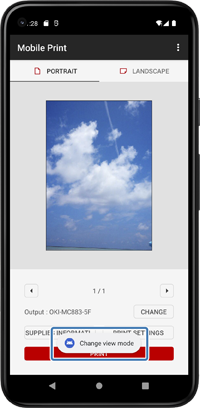
-
Tap [Print].
Memo
If you want to cancel editing of the image, tap on the navigation bar menu and tap [Reset].